
The feature is called Scheduled tasks, and it does one thing well: it saves a prompt, runs it on the cadence you pick, and sends you the answer by notification or email. You get a morning news summary at 8am, a Monday priorities kick-off, a reminder that actually fires, without you opening the app to ask.
It takes about a minute to set up, and the whole trick is telling it exactly what you want each time.
What a scheduled task actually is
Think of it as a recurring prompt with a built-in reminder. You write the instruction once, choose when and how often it runs, and ChatGPT does that job on its own and messages you. It can use web search when the job needs current information, and connected apps like Gmail or Slack when you have linked them.
It is a stored prompt on a timer, so give it a job with a clear, repeatable output rather than a vague standing order.
Set one up in about a minute
- Open Scheduled, or just ask. Find Scheduled in the sidebar to build a task by hand, or type the request straight into a chat, for example "every weekday at 8am, send me a three-line summary of the top AI news". ChatGPT turns that into a task you can save.
- Set the schedule. Choose one-time or recurring, then the time and day. On the Free plan you pick a rough window (morning, afternoon or night) and it runs up to once a day. Paid plans let you set an exact time and repeat as often as once an hour.
- Turn on how it reaches you. Go to Settings, then Notifications, and choose Push, Email or both. For push on your phone, create the task in the mobile app and allow notifications when it asks.
- Edit or pause it later. Open the task title inside its conversation to edit, pause or delete it. You can also reach the full list from Settings, then Notifications, then Manage tasks, or from the "..." menu in a chat, then See scheduled tasks.
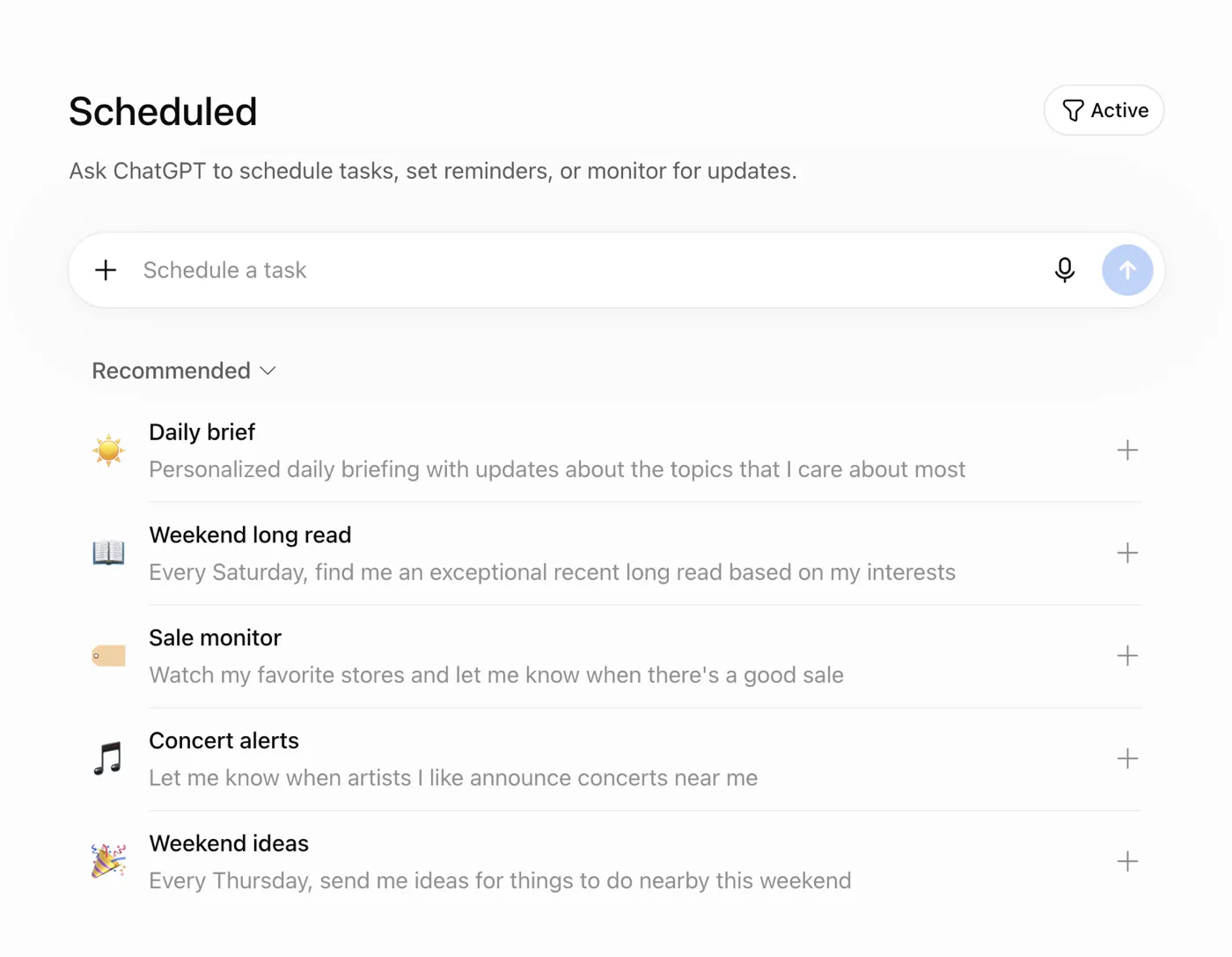
What is actually worth scheduling
The tasks that earn their place are the small recurring ones you would otherwise forget or do by hand. A few that work well:
- A morning briefing. A three-line summary of the news, your calendar, or the weather at a set time, so you start the day already caught up.
- A weekly kick-off. A Monday 9am prompt asking you to name your top three priorities for the week.
- A reminder that fires. "Remind me to X" on a cadence, the sort of thing a sticky note never manages.
- A recurring check. Watch for a change and tell you when something moves, so you are not refreshing a page.
The paste-in that makes a task worth keeping
The beginner mistake is vague scheduling, "tomorrow morning, something about the news", which gives you a waffly message you stop reading by day three. This paste-in forces the specifics that keep a task tight: exact time and timezone, format, length, and how you want it delivered. Fill it in, paste it into ChatGPT, and it sets the task up.
Set this up as a scheduled task and run it on the cadence below. Before you save it, read the schedule and the format back to me in one line so I can confirm you have it right.

SET UP (fill this in once)
- THE JOB: [what each run should produce, for example a short briefing on the top AI news from the last 24 hours]
- WHEN: [time and day, plus your timezone, for example 8am every weekday, Europe/London]
- HOW OFTEN: [one-time, daily, weekly, or the exact recurrence you want]
- FORMAT: [for example three bullet points, plain text, no preamble]
- LENGTH: [for example under 80 words in total]
- HOW IT REACHES ME: [push notification, email, or both]

RULES FOR EVERY RUN
- Keep to the format and length above. Skip the greeting, the sign-off, and any "here is your briefing" line.
- If a run has nothing worth reporting, say "nothing new" in one line rather than padding it out.
- Use web search where the job needs current information, and name the source for anything you claim.
- Never invent a figure, a headline, or a link. If you cannot verify something, leave it out and tell me you did.
- Stick to the timezone I gave you, and hold the same clock time when the clocks change unless I say otherwise.

SELF-CHECK (do this once, now, before you save)
- Read the schedule back to me in one line: what runs, when, how often, and where it lands.
- Tell me plainly if any part of this is something a scheduled task on my current plan cannot do, so I can adjust it now instead of finding out at 8am.
Here is the same brief filled in for a morning briefing, so you can see what a finished one looks like:
- THE JOB: a three-line summary of the top AI news from the last 24 hours
- WHEN: 8am every weekday, Europe/London
- HOW OFTEN: daily
- FORMAT: three bullet points, plain text, no preamble
- LENGTH: under 80 words in total
- HOW IT REACHES ME: push notification
When you want it to fire on an event, not a time
Everything above runs on a clock. There is a second kind worth knowing about: event-triggered tasks that fire when something happens, like a new Gmail message, a Slack post or a GitHub change, rather than at a set time.
These need Plus or above with Work connected, so Free and Go cannot create them. If you are on one of those, keep to a time-based task for now, and treat the event trigger as the thing to try once you upgrade.
The honest catch
A scheduled task is a prompt on a timer, so it will not touch files stored in a project, run a voice chat, or use a custom GPT, and on the Free plan it fires once a day in a rough window rather than at an exact minute.
The active-task limits and plan rules also shift over time, so check the current numbers against OpenAI's Scheduled tasks help page on the day if you are near a cap.
If everyday scheduling is what you are after, this is the easiest place to get it, and a rival assistant offers a similar thing inside its paid tier if you already live there.
Set one up now
Pick the smallest useful task you can think of, an 8am three-line briefing is a good first one, fill in the paste-in above, and drop it into ChatGPT. Check it lands tomorrow, then adjust the wording once you see the first result.
If the first run does not reach you, the usual cause is notifications: check Settings, then Notifications, that Push or Email is on, and on your phone that you allowed notifications for the app. If you want the prompt itself to be sharper before you schedule it, writing better AI prompts is the place to start.
Questions people ask
How can I view my scheduled tasks in ChatGPT?
Open Settings, then Notifications, then Manage tasks, or use the "..." menu in a chat, then See scheduled tasks. Open a task's title inside its conversation to edit, pause or delete it.
What are the best scheduled tasks to use in ChatGPT?
Small recurring jobs you would otherwise forget or do by hand: a morning briefing, a Monday priorities kick-off, a reminder on a cadence, or a check that tells you when something changes.
Why are my ChatGPT scheduled tasks not working?
Usually notifications. Check Settings, then Notifications, that Push or Email is on, and that you allowed notifications for the app on your phone. On the Free plan a task runs once a day in a rough window, so it will not fire at an exact minute.
Can you use ChatGPT to automate tasks?
Yes, with Scheduled tasks. It saves a prompt, runs it on the cadence you pick, and sends you the answer by notification or email, using web search or connected apps like Gmail where the job needs them.
Do I need a paid plan for scheduled tasks?
No. The Free plan includes scheduled tasks: one-time, or recurring up to once a day, in a rough window (morning, afternoon or night). Paid plans add exact delivery times, recurrence up to once an hour, and more tasks running at once. Availability depends on your account and app version, so if you cannot see Scheduled yet, update the app.