
First, what a Claude skill actually is
A one-off message is you typing a single question and getting one answer, like "write me a birthday message for my mum". You get a reply, and next time you have to explain the whole thing again from scratch.
A Claude skill is a file of instructions you upload once into Claude, then call with a slash command so it runs the same job every time.
A skill is different. It is a written set of instructions, saved once, that makes Claude do a job the same way every time without you re-explaining it. Think of it like a recipe card: the card does not cook, but hand it to any cook and you get the same dish.
A few words you will see a lot, glossed plainly:
- A skill is that reusable set of instructions for one job, built to be kept and used again, not typed fresh each time.
- A SKILL.md is the file the skill lives in. The ".md" is a plain-text file type, so a SKILL.md is only text you download and upload, nothing technical to install.
- A placeholder is a gap in the instructions marked with square brackets, like [paste your list here]. It is a "fill this in" sign. Some skills ask you to fill those after they load; some just need your own prompt next to them.
So a skill is instructions. Your job is to get the file into Claude, then give it your real input.
What one looks like inside
You do not need to write these, but it helps to see one, so a downloaded file is not a mystery. Here is a small, complete skill. Open any .md you download and it will follow this shape.
---
name: plain-english
description: Rewrite text so a busy person gets it fast. Use when I say "make this plainer", "simplify this", or "cut the jargon". Do not use this for creative writing or anything that should keep its style.
---

## What it does
Takes the text I paste and rewrites it in short, plain sentences, keeping every fact.

## Steps
1. Read what I paste.
2. Rewrite it in the shortest plain version that keeps the meaning.
3. Keep all names, numbers and dates exactly. Never invent any.
The top part between the lines is the label. The description is the line that matters most: Claude reads it to know what the skill is for and when it fits, so it names the jobs the skill is meant for and the ones to leave alone. Everything under the headings is the method Claude follows once it runs.
A quick way to check Claude has understood a skill you loaded: ask it to read the skill's description back to you and say when it would use it. If the answer does not match the job you had in mind, the description is the part to fix.
How to add a skill in Claude
This is the save-it-once way: download the skill file from a guide, upload it into Claude, then call it whenever you need it.
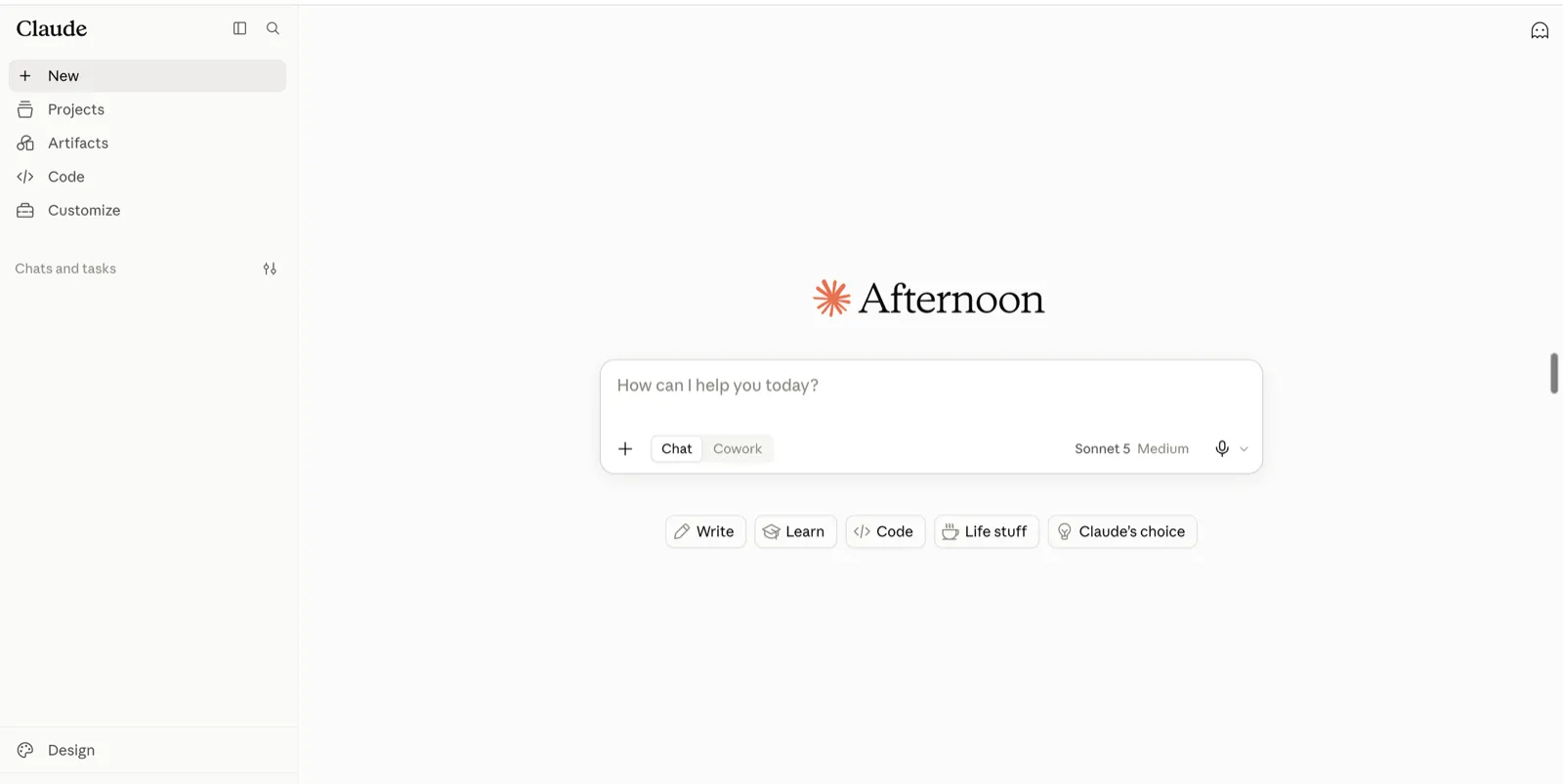
- Open Claude in your browser. Go to claude.ai and sign in if it asks.
- Download the skill file from the guide. On the Guides page, open the grey skill box and use Download .md (not Copy). That saves the SKILL.md to your computer.
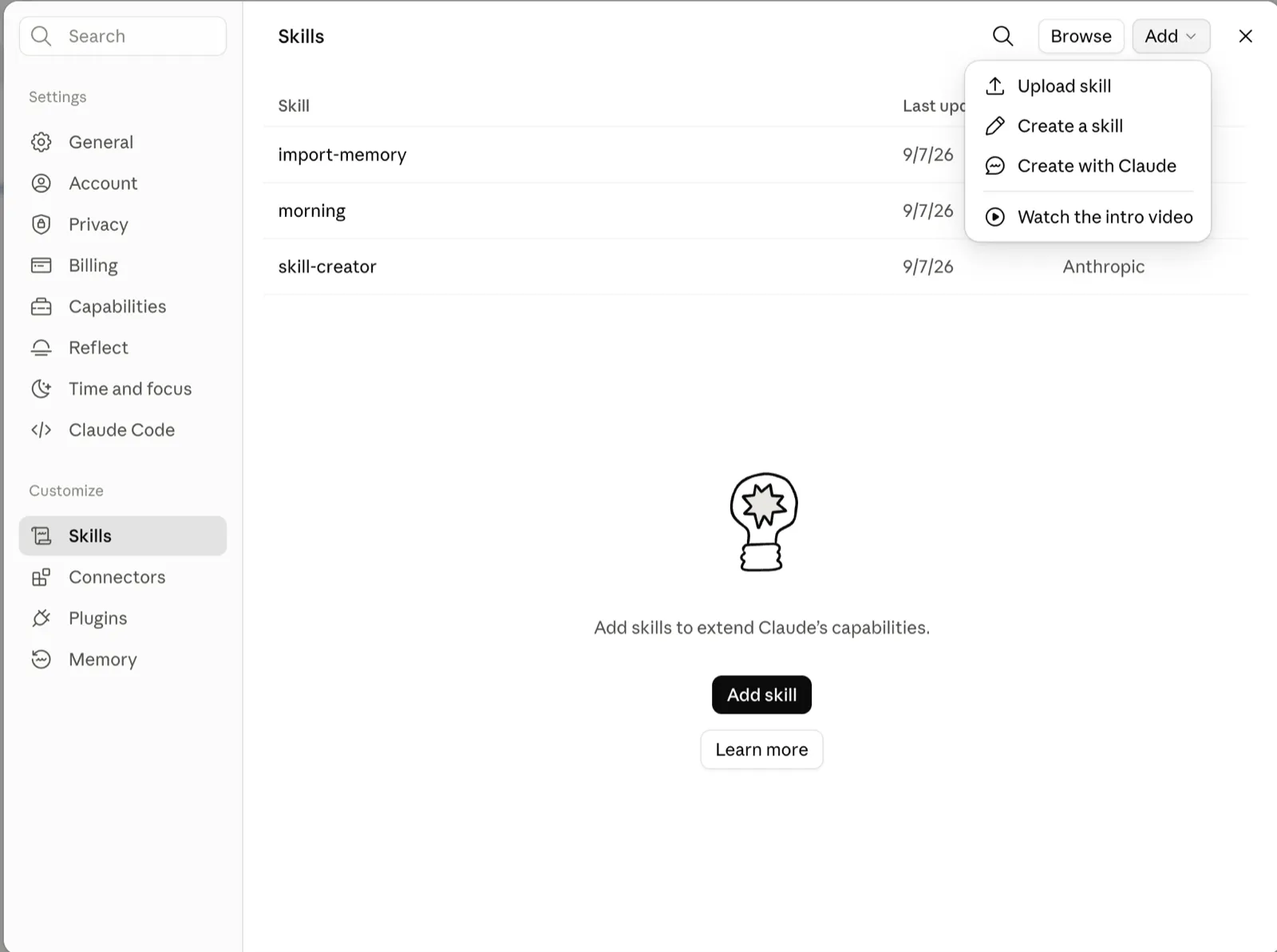
- Open Customize, then Skills. In Claude, go to Settings, then under Customize click Skills. Click Add, then Upload skill.
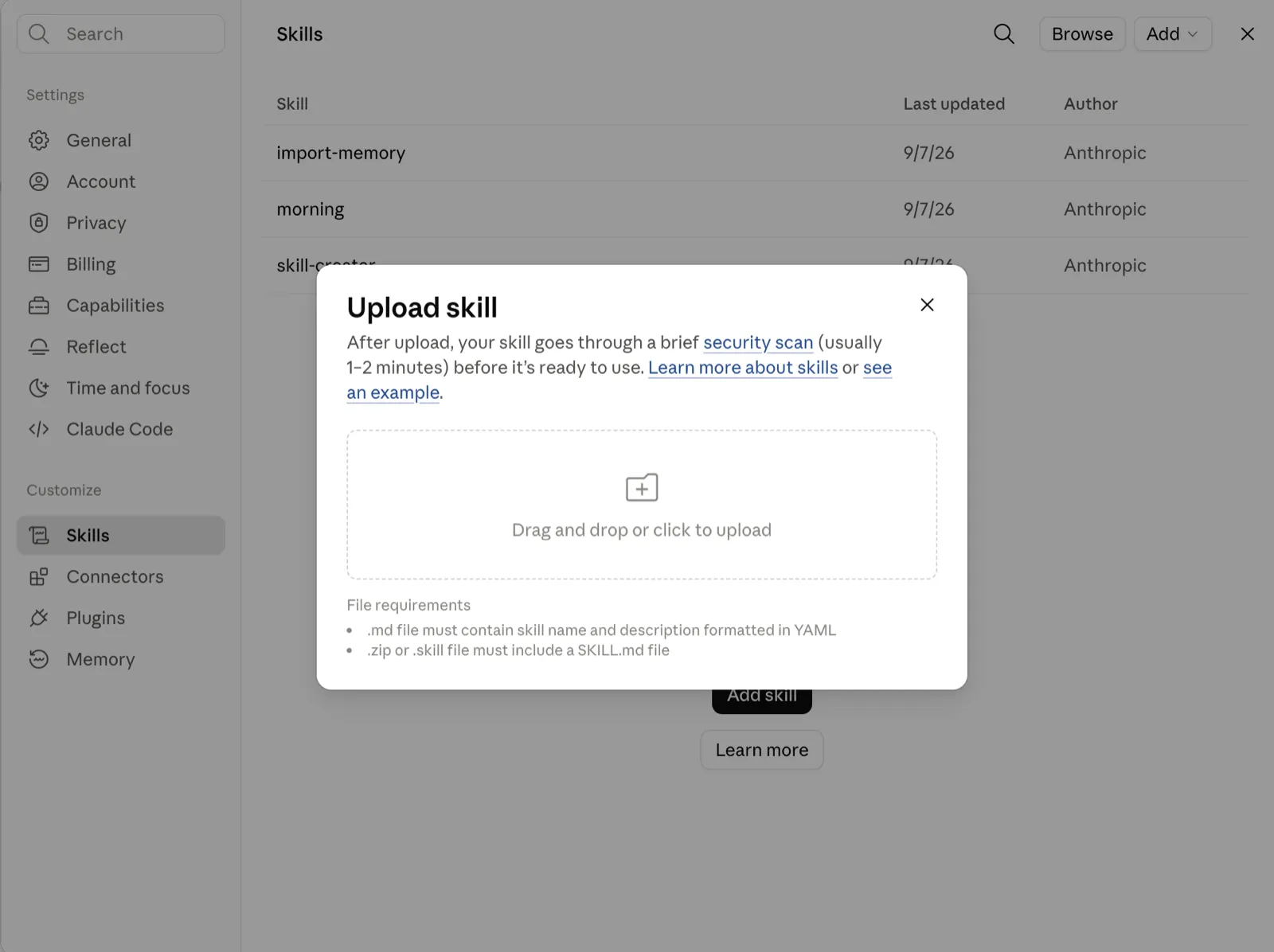
- Upload the .md file. Drop the file you downloaded, or click to choose it. Claude runs a short security scan before the skill is ready.
- Run it with your own job. In a new chat, type the skill's slash name (for the Voice File that is
/voice-file), then type what you want done next to it, and send.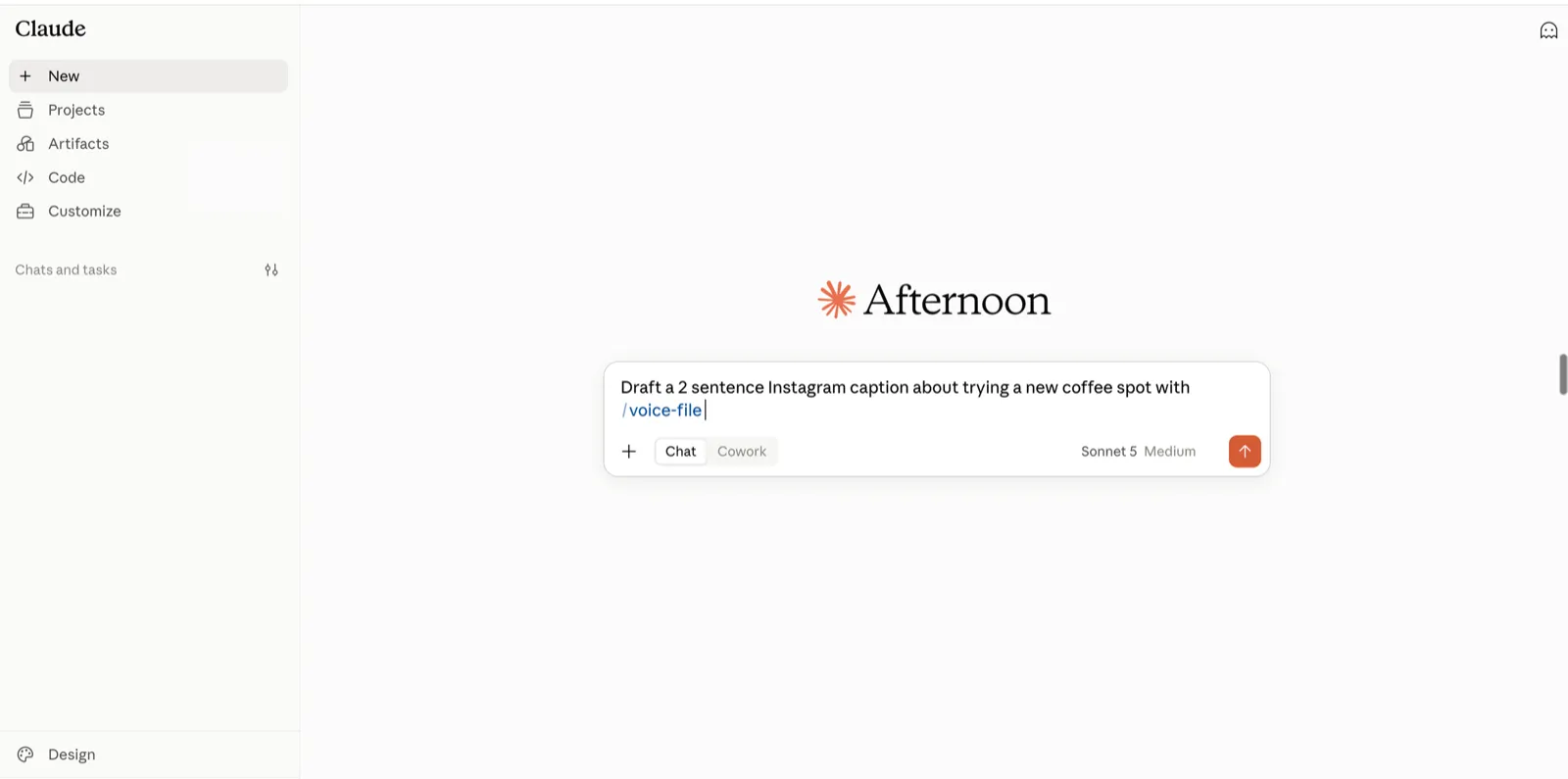
One honest note: ChatGPT has skills too, but only on Business, Enterprise, Healthcare and Edu accounts, per OpenAI’s help page (read 5 October 2026). This guide is Claude only.
A worked example, start to finish
Take the Voice File from the Make AI write in your voice guide. It makes Claude write like you by learning from real samples you give it.
- Open the Voice File guide and click Download .md on the grey skill box.
- Open claude.ai.
- Go to Customize, then Skills, then Add, then Upload skill, and upload that file. Wait for the scan to finish.
- Start a new chat. Type
/voice-file, then your job, for example:Draft a 2 sentence Instagram caption about trying a new coffee spot. - Send. Claude uses the skill on your request.
If the skill still has placeholders inside it (sample writing, banned words, never-do habits), upload it as it comes first and run it once to see how it behaves, then fill those in.
That is the loop: download the file, upload it once, run it, then fill your real details in. Getting in and rewording the instructions before you have seen them work is the thing most likely to break a skill.
Paste or upload: which to use
There are two ways to use a skill, and they are for different jobs.
- Paste the grey box straight into a chat when you just want to run it once and move on.
- Upload it under Customize, Skills when you want to keep it and reuse it with a slash command, which is the path this page walks through.
A Claude Project is a third option, for standing instructions across a set of chats. When in doubt: paste for a one-off, upload for anything you will run again.
Common beginner mistakes, and the fix
- Copying the skill text instead of downloading the file. Copy puts a wall of text in your clipboard; Claude Skills wants the file uploaded. Fix: use Download .md, then Upload skill.
- Uploading, then forgetting to give Claude a job. The skill is only instructions. Fix: after it is ready, start a chat, type
/skill-nameplus what you want done. - Expecting it to remember between chats without installing it. In a plain new chat with no skill installed, Claude starts fresh. Fix: upload it once under Customize, then Skills, so it can load when you call it.
- Editing the skill instructions before you understand them. Rewording often breaks the part that made it work. Fix: upload the file as downloaded first; only change placeholders or samples once you have seen it run.
Where the line is
- The honest bit: a skill is not magic and it does not check itself. It does the job the way the instructions say, on the input you give it. Feed it thin input, get thin output.
- Claude can still get a fact wrong while sounding sure. You are always the one who reads the result before you use it.
- No Skills option under Customize? It may not be switched on for your account or plan yet. You can still paste a skill straight into a chat to run it once, which needs nothing set up.
Do it now
Pick any guide in the Guides library, download the .md, upload it under Customize then Skills, then run it once with a slash command and your own request. Ten minutes, one real thing, and you will have used your first skill.
Where to find more
Once you have run one, you will want more. The whole Guides library here is built to be downloaded and run the same way, one job at a time.
If you want to see the range of what a skill can do, Anthropic keeps a public collection of examples at github.com/anthropics/skills, sorted by type. Browsing those is a quick way to learn the shape before you ever write your own.
Questions people ask
Is a Claude skill just a prompt?
It is instructions, like a prompt, saved once as a SKILL.md file. You upload it into Claude and call it with a slash command, so it runs the same job every time without you typing the instructions again.
How do you get Claude skills?
Download the skill's .md file from the guide, then in Claude go to Settings, Customize, Skills, Add, Upload skill, and choose the file. After a short security scan you run it in a new chat with a slash command.
Should I paste a skill or upload it?
Paste it into a chat for a one-off run you will not repeat. Upload it under Customize, Skills to keep it and reuse it with a slash command. Copy is fine for a quick test, but Download and Upload is the version you keep.
Can I use a skill in ChatGPT?
Only on a ChatGPT Business, Enterprise, Healthcare or Edu account, where OpenAI has added skills under Plugins, then Skills. Free, Go, Plus and Pro accounts do not have them; the nearest thing there is a Project with saved instructions. This guide covers Claude.