
Since August 2026 the Claude app can start a Claude Code session on your computer and drive it. Here is the setup, then how to fix the two things that break it: the laptop going to sleep, and the notification never arriving.
What you need
- A Pro or Max plan, signed in through claude.ai. On Team or Enterprise an owner switches Remote Control on in the admin settings first.
- Claude Code on the computer. New to it? Anthropic's quickstart installs it in a few minutes. Already have it? Run
claude updatefirst: the phone controls below need a recent version. - The Claude app on your phone, logged in with the same account, notifications allowed. Type
/mobilein Claude Code on your computer and it shows a QR code that opens the right app store.
Three ways to set it up
Pick the one that matches where you already run Claude Code. Only the terminal route lets the phone start new sessions on your computer. The other two share a session you already have open.
1. From the terminal
- Open a terminal in the folder you want Claude working in. Terminal on a Mac, PowerShell on Windows. Never the home folder, because the trust prompt does not save for it. Run
claudeonce: accept the trust question, type/config, switch on Push when Claude decides and Push when actions required, then type/exit. - Run
claude remote-control. The first time it asks Enable Remote Control? Type y. Press the space bar and a QR code appears. This window is a status screen from now on, so leave it alone. - Scan the QR code with the phone camera and the session opens in the Claude app. Or open the app, tap the Code icon, the </> symbol in the menu, and find it in the list: a computer icon with a green dot means online.
- Start new sessions on the phone. Your computer sits at the top of that Code screen as a card with its name on. Tap it, pick a folder, type the task. Added in August 2026, so ignore any guide that says the phone can only watch.
2. From the Claude desktop app
- Open the Code tab and start a new session. Above the message box, pick the folder you want Claude working in, the same one you would open in Finder or Explorer. Send your first message so the session exists.
- Switch on Remote Control for that session. Click the computer icon at the top of the session and turn on the Remote Control switch. Or type
/remote-controlin the message box. The first time, it asks you to approve.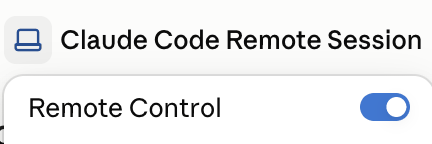
The computer icon at the top of the session opens this switch. - Open the Claude app on your phone and tap the Code icon, the </> symbol in the app's menu. Your session is in the list. You can keep typing at the desk while you steer it on the phone.
- Want Remote Control on for every session? Go to Settings, select Claude Code, and turn on Connect new sessions to Remote Control. The two notification options, Push when Claude decides and Push when actions required, are on the same page.

Settings, then Claude Code. With this on, every session you start on this computer shows up on your phone.
3. From a session you already have open
- In the terminal or VS Code, type
/rcand press Enter. The conversation you are in shows up in the Claude app, history included, and both ends stay in sync. Next time, start withclaude --rcto have it on from the first message. - Want it on for every new session? Type
/config, find Enable Remote Control for all sessions, and set it to true.
Now test it. From the phone, send one line: "list the files in this folder and notify me when done". If the push never arrives, it is one of four things:
- The terminal is the front window on the computer. Pushes are skipped while you are in front of it. Click away or walk off.
/configsays No mobile registered. Open the Claude app on the phone once and it registers.- iPhone Focus mode or a notification summary is holding it. Check Settings, then Notifications, then Claude.
- Android battery optimisation is delaying it. Exempt the Claude app in the battery settings.
The one limit: the computer has to stay awake
The work runs on your machine and the phone is a window onto it. Close the terminal and the app shows the session offline within seconds. Let the laptop sleep and the job pauses until it wakes, then reconnects on its own. The docs say that much. What they skip is how to stop the sleep.
Mac
- Plug it in. System Settings, then Battery, then Options, and turn on Prevent automatic sleeping on power adapter when the display is off.
- Leave the lid open. caffeinate cannot stop lid-close sleep, as Clamshell's guide (13 September 2026) spells out. With the lid open,
caffeinate -dimsin a second tab holds the machine awake while you are out. - Need the lid closed? Clamshell itself ($9.99 once, an independent app, seven-day trial, Apple Silicon and macOS 14 or later), an external display, or
sudo pmset -a disablesleep 1, which needs your admin password and turns off all sleep until you set it back to 0.
Windows
- Sleep off while plugged in. Settings, then System, then Power & battery, then the sleep timeouts, and set sleep when plugged in to Never.
- Lid to Do nothing. Control Panel, then Power Options, then Choose what closing the lid does.
- Leave it unlocked while a job runs. Windows can drop the network when the screen locks and has no caffeinate, per a closed Claude Code issue from June 2026.
Any computer
- Might close the terminal tab? On Mac or Linux, start inside tmux, a free tool that keeps a terminal session alive, using the file below. Windows has no equivalent, so keep the window open.
- Sleep and a lost network are different. Sleep pauses the job and it reconnects on wake. Lose the network for more than about ten minutes and
claude remote-controlquits, so you rerun it at the desk. A session started with/rckeeps retrying instead. - Test the reconnect before you trust it. Alex Dunlop's Mac mini lost sessions after sleep (7 August 2026): "test it on your hardware before relying on it".
# Mac or Linux. Type these one at a time in a terminal, in your project folder.
# Windows: skip this file. Keep the window open and the screen unlocked (see the Windows box).

# 0. Mac only, once. tmux does not come with macOS; this needs Homebrew (brew.sh).
brew install tmux

# 1. Start a tmux window that runs Remote Control, so a closed tab cannot end it.
#    Come back to it later with:  tmux attach -t claude
tmux new -A -s claude 'claude remote-control'

# 2. Mac only, in a SECOND terminal tab: hold the machine awake while you are out.
#    -d display  -i idle  -m disk  -s system (system sleep only while on mains power)
#    Press Ctrl+C in this tab to release it when you are back.
caffeinate -dims
What you can do on the sofa
- Send prompts, attach a photo, stop a turn, and read the diff of what changed if the folder is a git repository. Each photo is saved on the computer and Claude is told the path, so "file this receipt in the expenses folder" works from a picture.
- Approve or refuse each permission prompt. It waits until you answer. The app offers Manual, Accept edits and Plan. Bypass and Auto cannot be chosen there.
- Change the model or the effort level for that session.
- Ask for a push in plain words: "notify me when the tests finish".
- One trap. Leave the QR panel open on the computer and messages from the app can stall at Preparing, per a Windows report from 16 September. Press the space bar again in the terminal window from route 1, or Esc if you used
/rc.
The task brief that survives a small screen
A prompt typed with one thumb tends to be three words, and three words left unattended come back as a job you did not ask for. Paste this into the app once, fill the brackets, send.
TASK FROM MY PHONE

I am sending this from my phone, so I will be slow to reply and I cannot read long output. Work from this brief, ask before you guess, and keep every message to me short.

WHAT I WANT DONE
[one sentence: the outcome, not the method]

DONE MEANS
[how we both know it is finished, for example "the tests pass" or "the three files are renamed and nothing else changed"]

WHERE TO WORK
Folder or files you may touch: [list]
Do not touch: [list, or "anything outside the folder above"]

BEFORE YOU START
1. Restate the task in two lines and list the files you expect to change.
2. If anything in this brief is missing or contradicts itself, ask me one question and wait. Do not fill the gap yourself.
3. If the task needs something I have not given you (a login, a file, a decision), stop and name it as [NEED: ...].

WHILE YOU WORK
- Anything that deletes, sends, publishes, installs or changes settings: stop and ask first, every time.
- If a command fails twice, stop and tell me what happened instead of trying a third way.
- Keep messages to me under five lines. Put the detail in a file called PHONE-NOTES.md in the working folder.

WHEN YOU FINISH
Send me a notification. Then send:
- What changed, file by file, one line each.
- What you did not do, and why.
- The one thing to check first when I am back at the desk.

SELF-CHECK BEFORE YOU NOTIFY ME
- Did I change only the files listed?
- Did I ask before every step that deletes, sends or installs?
- Did I invent anything I was not given? If yes, say so at the top.
Close it safely
Ctrl+C in the terminal window from route 1, or turn off the Remote Control switch in the desktop app. For about four hours the same command in the same folder brings every session back. After that, start fresh. To take over at the desk, open claude.ai/code in any browser: the same session is there, and on a tablet too.
REMOTE CONTROL SETUP CHECKLIST

Before
[ ] Pro or Max plan, signed in with /login through claude.ai
[ ] Claude app on the phone, same account, notifications allowed
[ ] Computer plugged in

On the computer
[ ] claude update
[ ] Terminal open in the project folder (never the home folder)
[ ] Folder trusted: run claude once there, accept the trust question
[ ] In that session, /config: Push when Claude decides = on, Push when actions required = on, then /exit
[ ] Optional on Mac or Linux, so a closed tab cannot end it: tmux new -A -s claude 'claude remote-control'
[ ] Otherwise: claude remote-control, then y
[ ] Desktop app instead: Code tab, send one message, click the computer icon at the top, turn on Remote Control
[ ] Space bar shows the QR code, then leave that window alone
[ ] Mac: caffeinate -dims in a second tab, lid left open
[ ] Windows: sleep when plugged in = Never, lid action = Do nothing

On the phone
[ ] Scan the QR, or tap the </> Code icon in the Claude app and find the session (green dot = online)
[ ] Your computer's card at the top of that Code screen: tap it to start a new session in any folder
[ ] Walk away from the terminal, then send one test line: "list the files in this folder and notify me when done"
[ ] Push arrived? The setup works. No push: front window, No mobile registered, iPhone Focus, Android battery.

Closing
[ ] Ctrl+C in the terminal
[ ] The same command in the same folder brings the sessions back for about four hours
If the computer will be off
Then this is the wrong tool. Start a cloud session instead: on the phone's Code screen pick a repository on GitHub and a branch, describe the task, and it runs on Anthropic's machines with the laptop closed. Pull it down later with claude --teleport. Cloud sessions draw on the same plan limits, with no separate charge.
The honest bit
- Nothing on your computer is opened to the internet. It only calls out, with short-lived credentials, and the session shows only in your own account.
- The transcript sits on Anthropic's servers while connected, tool activity included, so the devices stay in sync. Organisations with zero data retention cannot turn it on.
- Your unlocked phone can approve commands. The fear in the safety thread is Claude deleting files it decided were clutter. Keep Manual mode for anything that deletes or sends, and a lock screen.
- Dispatch is often unreachable. The older route, pairing your phone through Cowork, went patchy after Chat and Cowork merged. Anthropic's help page still describes it and says new users may not get it. If you cannot see it, use the routes above.
- Want end-to-end encryption? Happy, open source and last updated 16 September 2026, wraps Claude Code in its own app. More setup, one more thing to trust.
Do it tonight
Plug in, start it by whichever route above matches your setup, find the session on the phone, and walk to the kettle, because a push will not fire while you are still in front of the computer. Send the test line again. If the push arrives, the setup works.
Once it is running, give Claude your standing instructions so the jobs you send from a small screen come back the way you like them.
Questions people ask
Can you run a Claude Code remotely?
Yes. With Remote Control on a Pro or Max plan, the Claude app on your phone drives a Claude Code session running on your computer. If the computer will be off, start a cloud session instead, which runs on Anthropic's machines.
How can I continue a Claude Code session on my phone?
In the terminal or VS Code, type /rc and press Enter. The conversation shows up in the Claude app, history included, and both ends stay in sync. In the desktop app, turn on the Remote Control switch at the top of the session instead.
Does it work with the laptop closed?
Only with the fixes above, and a Mac needs Clamshell, an external display or the pmset command. Otherwise the job pauses until the lid opens. For anything that must run with the laptop shut, use a cloud session.
Does it cost extra?
No. It comes with Pro and Max, and with Team and Enterprise once an owner switches it on. It draws on the same usage limits as everything else you do with Claude.
Can I run more than one session?
Yes. The terminal route serves up to 32 at once, all in the same folder, so two sessions editing one file can collide. Name each one so the list makes sense: claude remote-control --name "Invoices". Renaming in the app updates the terminal too.